
Updated on November 11, 2026
This article contains affiliate links: if you buy through them, Wanda-techs earns a commission at no extra cost to you.
A problem with your Garmin Venu X1 can hit battery life, syncing with Garmin Connect, notifications, GPS or the sensors. It can also freeze the watch. Garmin’s manual ties these symptoms to settings on the watch or the phone, and you can fix them without any tools.
Restarting and resetting come last.
Common symptoms and causes
- Battery drains fast: Always On Display, high brightness, long screen timeout, the All Systems satellite mode, the pulse oximeter running all day, heart rate broadcasting, lots of notifications, Bluetooth left on.
- Sync stopped working: Garmin Connect app closed on the phone, phone more than 10 meters (33 feet) away, watch paired from the phone’s Bluetooth settings instead of the app.
- Notifications missing: notifications turned off on the watch, app blocked (Android) or missing from Connected Apps (iPhone), Do Not Disturb or Sleep mode active.
- Slow GPS: no recent sync (the watch has no satellite data), or you are indoors or in a dense area.
- Erratic heart rate: dirty skin or sunscreen under the watch, a loose fit, no warm-up.
- Frozen watch or recovery mode screen: a software problem.
Before you start
You need a Garmin Connect account and a paired phone: they handle updates and backups. Sync the watch before any reset. Every time.
Good to know: only the reset path comes from the French manual. The others are translated from the English manual, and the label on your watch may differ slightly.
Warning: Solution 5 includes a reset that erases data. Back up first. The Delete Data and Reset Settings option erases your personal information, your activity history, your Garmin Pay wallet and saved music; the option that deletes activities wipes your history.
Warning: do not open the watch. Opening the device can void the warranty, so check when your warranty ends before doing anything of the sort.
Solution 1: the Garmin Venu X1 battery drains too fast
Always On Display and watch face seconds weigh on the battery and on the life of the AMOLED screen (a screen where every dot makes its own light).
- Press and hold the button to open the controls menu.
- Turn on battery saver.
- Open Settings > Display & Brightness.
- Lower the brightness.
- Turn off Always On Display, or pick a shorter timeout.
- Turn off Watch Face Seconds.
- Open Settings > Health & Wellness > Pulse Oximeter.
- Change All Day to During Sleep or On Demand.
- Turn off Bluetooth when you are not using connected features.
- Limit the phone notifications shown on the watch.
- Stop broadcasting your heart rate.
- Turn off wake words.
- Open the battery glance to see what is using power.
The battery glance should show which features draw the most. The watch should then last longer between charges.
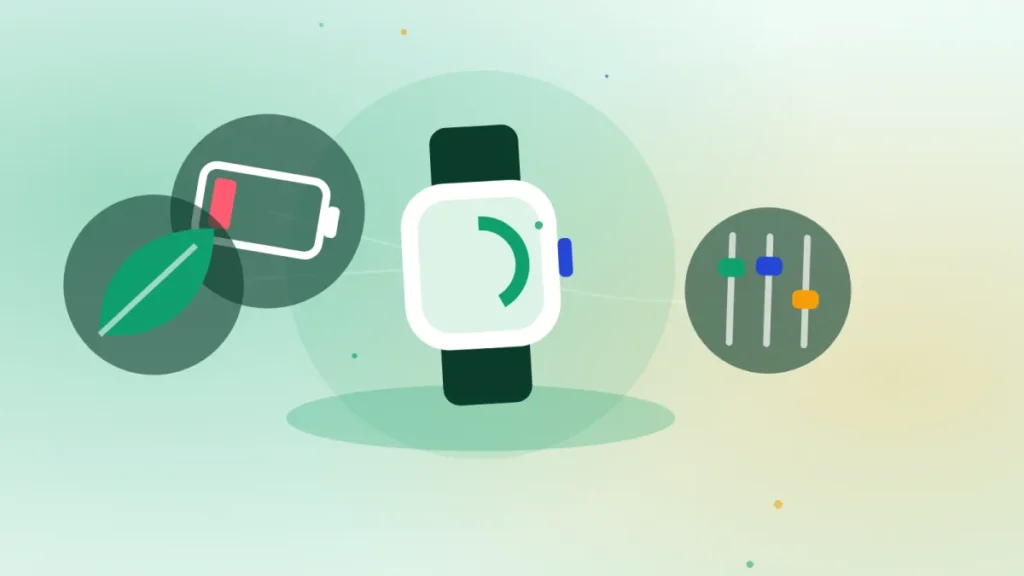
Warning: turning off wrist heart rate in Settings > Health & Wellness > Wrist Heart Rate > Status (set to Auto by default) saves battery, but it also switches off the wrist pulse oximeter.
More ideas are in our guide on a smartwatch battery that drains fast.
Solution 2: syncing with Garmin Connect stopped working
- Open the Garmin Connect app on the phone and leave it running.
- Hold the watch within 10 meters (33 feet) of the phone.
- Open Settings > System > Software Update to check for an update.
The watch should sync by itself, then Garmin Connect sends it new software if there is any. On a computer, Garmin Express handles the update too.
If syncing does not resume, pair the watch again.
Tip: always do it from the Garmin Connect app, never from the phone’s Bluetooth settings. Pairing through the phone’s Bluetooth is a known cause of syncing that stops working.
- On the watch, open Settings > Connectivity > Phone > Pair Phone.
- In Garmin Connect, scan the QR code shown on the watch.
- Follow the instructions in the app.
The watch should sync. The Pair Phone option only appears when no paired phone is connected; for a watch that has never been paired, the path is Settings > Connectivity > Pair Phone.
Solution 3: notifications no longer reach the Venu X1
- On the watch, open Settings > Connectivity > Phone > Notifications.
- Check that the status is On.
- Check the Calls, Texts and Apps submenus.
- On an iPhone, in Garmin Connect, open More > Settings > Connected Apps (the Garmin Connect app uses its own labels, depending on its language).
- Tap the app and choose which data to receive.
- On Android, in Garmin Connect, open Settings > Notifications > App Notifications and tick the apps you want.
- Press and hold the button to open the controls menu.
- Turn off Do Not Disturb.
- Check Settings > Focus Modes > Sleep > Smart Notifications: set to Off, it blocks smart notifications during your sleep hours.
- Make sure Silent Mode is off in Settings > Sound & Vibe.
A new notification should show up; you can find it by swiping down from the watch face.
Good to know: on an iPhone, an app only appears in the watch’s list of connected apps after it has sent a first notification. On Android, the watch shows a list of Blocked Apps: an app on that list sends nothing.
Solution 4: slow GPS, or inconsistent heart rate or SpO2
GPS needs satellite data, which the watch downloads for several days at each sync.
- Sync the watch (Garmin Connect, Garmin Express or Wi-Fi).
- Go somewhere open, away from tall buildings and trees.
- Tilt the watch face toward the sky.
- Stay still for a few minutes.
- If the signal stays weak, open Activities > (your activity) > activity settings > Satellites.
- Choose All Systems.
The watch should find your position; it can take 30 to 60 seconds. All Systems locks on faster and holds better in difficult spots. The battery, though, drains faster.
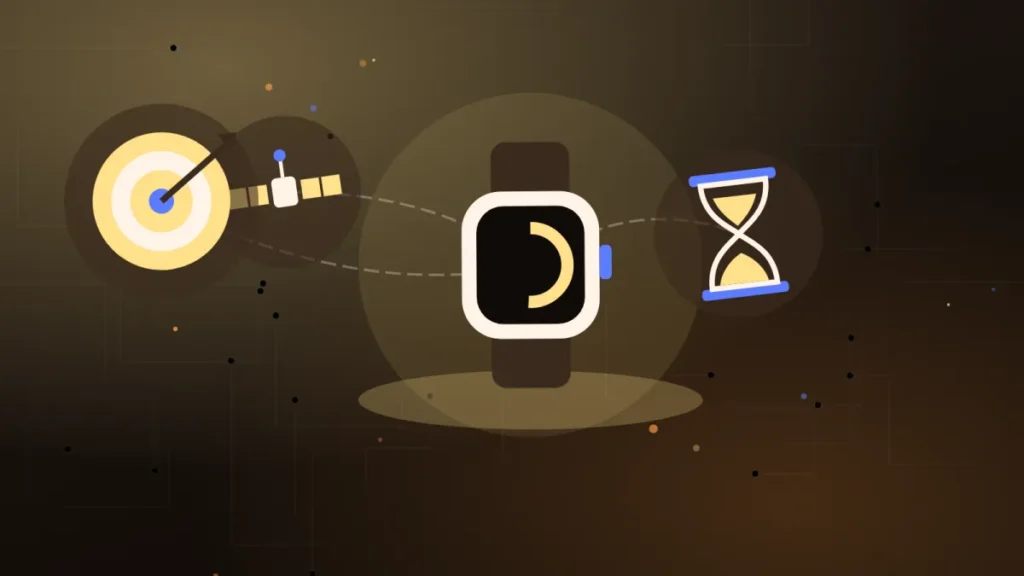
UltraTrac does the opposite: fewer track points, more battery life, a lower-quality track. This setting is not available for every activity, and the “Multiband” mode mentioned in older articles does not appear under that name in the manual.
For heart rate and SpO2 (the oxygen level in your blood, measured by the pulse oximeter):
- Wash and dry your forearm, with no sunscreen, lotion or insect repellent under the watch.
- Wear the watch above your wrist bone, snug but comfortable.
- Warm up for 5 to 10 minutes, indoors if it is cold.
- Wait for a heart rate reading before you start the activity.
- Stay still during an SpO2 reading.
- Rinse the watch with fresh water after every workout.
Readings should become consistent again. An unusual sleeping position can skew overnight SpO2 readings downward; a chest strap can serve as an alternative.
If the wrist readings stay unstable, here is a chest strap that sends the measurement to the watch.
Garmin HRM 600 premium heart rate strap (size M-XL)
Rechargeable chest strap that sends heart rate to a watch or a bike computer. About two months of use at one hour a day.
- AmazonSee at Amazon
Warning: avoid scratching the sensor.
Good to know: Garmin states that the Venu X1 is not a medical device.
Solution 5: the watch is frozen, restart then reset
- Press and hold the button until the watch turns off.
- Press and hold it again to turn it back on.
Another method: plug the watch into a USB-C charging port for at least 30 seconds, unplug it, then plug it in again. The watch should restart.
If the charging cable is damaged or lost, here is a sturdy USB-C cable to charge the watch.
Anker 310 USB-C to USB-C cable, 0.9 m
A USB-C cable to replace a worn or frayed one. It carries charging and data between a tablet, a phone and a charger.
- AmazonSee at Amazon
Problem back? Move on to the reset.
Warning: step 6 below erases data; sync and back up first. Reset Default Settings keeps your information and history. Delete Data and Reset Settings erases personal information, activity history, the Garmin Pay wallet and saved music.
- Sync the watch with Garmin Connect.
- Open Settings > System > Restore & Reset.
- Start a backup (Back Up Now).
- Open Swipe left > Settings > System > Restore & Reset > Reset.
- Choose Reset Default Settings first.
- If the problem persists, choose Delete Data and Reset Settings, which erases your data.
- To get your settings back, open Garmin Devices > your watch > System > Restore & Reset > Device Backups in Garmin Connect.
- Choose the backup.
- Tap Restore from Backup, then Restore.
The watch should restart with your settings restored.
If nothing works
Stop if the watch stays stuck in a boot loop or on the recovery mode screen after a restart and a 30-second USB-C charge. Stop too if the sensor or the screen is damaged. According to the manual, recovery mode appears when the watch cannot fix a software problem on its own; we could not read the procedure that goes with it.
Contact support at support.garmin.com and ask about your warranty. If the watch no longer charges at all, read our guide for a Garmin watch that won’t charge first.
Take better care of your Garmin Venu X1: our toolbox
A few accessories to charge, carry and clean your watch every day.
- Anker Nano 20 W USB-C wall charger (PowerPort III)A compact 20 W USB-C wall charger for speakers, phones and tablets. Useful when the speaker comes without a mains adapter.AmazonSee at Amazon
- Anker Nano 10,000 mAh 45 W power bank with retractable USB-C cableA pocket power bank with a built-in USB-C cable. It tops up a phone, a tablet or a USB-C accessory away from a socket.AmazonSee at Amazon
- Mistify screen cleaning spray 500 ml with 2 microfibre clothsCleans screens and glass surfaces without leaving streaks. The two microfibre cloths are soft and lint-free.AmazonSee at Amazon
- Garmin HRM 600 premium heart rate strap (size M-XL)Rechargeable chest strap that sends heart rate to a watch or a bike computer. About two months of use at one hour a day.AmazonSee at Amazon
Frequently asked questions
Why does my Garmin Venu X1 battery drain so fast?
According to the manual, Always On Display, high brightness, the All Systems satellite mode and the pulse oximeter running all day use up battery. The battery glance shows what is drawing power.
How do I restart a frozen Garmin Venu X1?
Press and hold the button until the watch turns off, then hold it again to turn it back on. Another method: plug the watch into a USB-C charging port for at least 30 seconds, unplug it and plug it in again.
Why has my Venu X1 stopped syncing with Garmin Connect?
The Garmin Connect app must be open on the phone, and the watch within 10 meters (33 feet). If the watch was paired from the phone’s Bluetooth settings, pair it again from the Garmin Connect app.
How do I reset a Garmin Venu X1?
Sync it, then open Settings > System > Restore & Reset > Reset. Reset Default Settings keeps your information and history. Delete Data and Reset Settings also erases your history, Garmin Pay and music.
Share this content: