

Updated on November 2, 2026
This article contains affiliate links: if you buy through them, Wanda-techs earns a commission at no extra cost to you.
On HyperOS, one setting will not clear the ads. They come from the msa system service and from the recommendations built into each Xiaomi app. Revoke msa first, then switch the options off one by one, and keep ADB for the apps that Settings will not remove.
Common symptoms and causes
- Ads or recommendations show up in Themes, Security, Downloads, Music, Mi Video or the browser.
- The msa service (Xiaomi’s system ad service) is still authorized.
- The wallpaper carousel is running on the lock screen.
- The home screen suggests apps to install.
- A preinstalled app has no Uninstall button.
- After an update, ads come back or a menu has moved.
Before you start
- A Xiaomi, Redmi or POCO phone running HyperOS, including the Redmi Note 14, 14 Pro and 14 Pro+.
- For step 5: a computer with adb, installed and ready to use, and a USB data cable.
- A backup of your data, before step 5.
Good to know: we found no official Xiaomi page for these settings. The paths come from third-party guides written for the English interface, on the Global or EEA versions. Menu names can differ with your region and software version.
Warning: step 5 removes apps from your profile and can lock you out of the phone. Back up first. Removing the wrong package can cause a black screen, a bootloop (the phone restarts over and over) or an FRP lock, the anti-theft protection that locks the phone after a reset.
Warning: the third-party guides disclaim any responsibility for your warranty, and we found no official Xiaomi position on it. Check your warranty end date before step 5.
Step 1: turn off msa and limit ads
The menu changes with the model, according to the guides.
- Open Settings > Fingerprints, face data & screen lock. On some models, open Passwords & security instead.
- Tap Authorization & revocation.
- Turn off the msa switch.
- Tap Revoke to confirm.
- Open Settings > Apps > Manage apps.
- Tap the three dots, then Show all apps.
- Tap msa > Notifications.
- Turn off Show notifications.
- Open Settings > Privacy > Advertising services.
- Untick Personalized ad recommendations.
The msa switch must stay off. According to the guides, the recommendations from the msa service stop, but the system apps keep their own ads: that is step 2. The last option only limits ad targeting and removes no ads.

Good to know: on HyperOS 2, one guide describes an Advertising Privacy menu with switches for ad themes, app-suggested ads and ad measurement.
Step 2: remove ads from HyperOS system apps
Each app has its own setting. If an option is missing on your version, move on to the next app.
Themes
- Open Themes > Profile > gear icon.
- Turn off Show ads and Personalized recommendations.
Security
- Open Security > gear icon.
- Turn off Receive recommendations (or Show recommendations).
Downloads
- Open Downloads > three dots > Settings.
- Turn off Show recommended content or Show ads.
Music
- Open Music > Profile > Settings > Advanced Settings.
- Turn off Show ads, Receive recommendations and Personalized recommendations.
Mi Video
- Open Mi Video > Profile > gear icon.
- Turn off Personalized recommendations.
Mi Browser
- Open Browser > Profile > Settings > Advanced.
- Turn off Show ads.
Reopen these apps to check: recommendations should no longer appear.
Step 3: wallpaper carousel and home screen
Wallpaper carousel
- Open Settings > Lock screen > Wallpaper Carousel.
- Turn the carousel off.
The carousel should show as off in this menu.
Home screen suggestions
- Press and hold an empty spot on the home screen.
- Tap Launcher Settings > More. The launcher is the app that runs your home screen.
- Turn off Show suggestions (or Show recommendations).
- Open App Vault, then tap three dots > Manage services.
- Turn off suggestions and app promotion.
The home screen and App Vault should no longer offer apps to install.
Good to know: the guides we checked do not describe the folder recommendations setting, so we give no path for it.
Step 4: remove preinstalled Xiaomi apps from Settings
- Open Settings > Apps > Manage apps.
- Tap the app you want to remove.
- Tap Uninstall, if the button is there.
The app should disappear from the list. Many system apps have no such button. For those, step 5 is what is left.
Step 5: remove Xiaomi bloatware with ADB
ADB (Android Debug Bridge) sends commands to the phone from a computer. It is an advanced method, best left to readers comfortable with the command line.
Prepare the phone
- Open Settings > About phone.
- Tap HyperOS version 7 times.
- Open Settings > Additional settings > Developer options.
- Turn on USB debugging.
- Also turn on USB debugging (Security settings) if your phone offers it.
- Connect the phone to the computer and open a command window.
- Type
adb devices. - Tap Allow in the RSA key prompt that appears on the phone.
The command should list your phone with the state device. The state offline or no device means the phone cannot be reached. If you see unauthorized, follow our guide to the ADB Device Unauthorized error.
Tip: if adb devices returns nothing, swap the cable. Many cables that ship with chargers carry power only, not data.
If yours carries power only, here is a USB-C to USB-C cable that transfers data too.

Anker 310 USB-C to USB-C cable, 0.9 m
Short USB-C to USB-C cable from a recognised brand, handy to replace a worn cable. Also useful to test whether the cable is the cause of a charging problem.
- AmazonSee at Amazon
Choose the packages
A package is the technical name of an app. These names apply to the Global and EEA versions and vary by region. Each comes from a single third-party source.
| App | Package name |
|---|---|
| msa | com.miui.msa.global |
| analytics | com.miui.analytics |
| Mi Browser | com.android.browser |
| Mi Video | com.miui.videoplayer |
| Mi Music | com.miui.player |
Tip: according to one guide, the package name is shown in Settings > Apps: tap the app, then the three dots and Additional info.
Warning: never remove these packages: com.miui.securitycenter, com.miui.home, com.lbe.security.miui, com.xiaomi.finddevice, com.miui.powerkeeper, com.android.updater, com.android.systemui, com.google.android.gms, com.android.settings, com.android.phone. On a phone bought on credit, also leave com.payjoy.access, tied to remote locking. com.xiaomi.finddevice touches FRP protection and com.android.systemui can leave a black screen.
Remove an app
Warning: this command removes the app for your profile. The -k option keeps its data and cache, and --user 0 limits the effect to user 0, leaving the system image untouched. Check your backup before you continue.
- Type
adb shell pm uninstall -k --user 0 package.name, replacingpackage.namewith the name you chose. - Restart the phone at the end of the ADB session.
The app should no longer appear on the phone after the restart.
Tip: write down each package you remove as you go. That list lets you restore everything, and customer support will want it if the phone gets stuck.
If nothing works
- Settings came back after an update: repeat steps 1 to 3. According to the guides, a major update can move options or reset them.
- A removed app reappeared: run the step 5 command again.
- You are missing an app: type
adb shell cmd package install-existing package.name, or reinstall it from the Play Store.
Ads persist after these repeats, but the phone is stable? Stop there. As a last resort, the factory reset would be under Settings > About phone > Factory reset, a path we could not confirm.
Warning: a factory reset erases your data and apps. Back up first.
If the phone no longer boots or stays locked, do not try anything else and contact customer support, with the list of removed packages.
Protect and back up your Xiaomi phone: our toolbox
These products help you prepare the ADB step, back up your data and protect the phone.
- Anker 310 USB-C to USB-C cable, 0.9 mShort USB-C to USB-C cable from a recognised brand, handy to replace a worn cable. Also useful to test whether the cable is the cause of a charging problem.AmazonSee at Amazon
- SanDisk Ultra Dual Drive Go 128 GB, USB-C and USB-A flash driveUSB key with two connectors, for a computer or a phone. Handy for carrying files or a software update.AmazonSee at Amazon
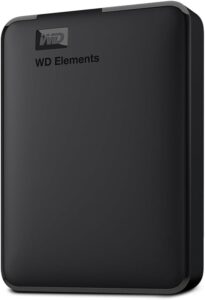 WD Elements 4 TB external hard driveStores a full copy of your files and settings before a risky operation such as a network reset or a system update. Connects by USB with no extra power supply.AmazonSee at Amazon
 Bitdefender Total Security 2026, 3 devices, 1 yearSecurity suite for Windows, Mac, Android and iPhone. It helps protect accounts and files on your phone.AmazonSee at Amazon
Frequently asked questions
How do I turn off msa on HyperOS?
Revoke its authorization in Settings > Fingerprints, face data & screen lock > Authorization & revocation, or under Passwords & security depending on the model. Turn off msa, then tap Revoke. According to the guides, msa cannot be uninstalled like a normal app.
Why do ads come back after an update?
A major update can reinstall removed packages and move or reset settings, according to the guides. Check the switches from steps 1 to 3 again. Then run the ADB commands again if apps have returned.
Can you remove system apps without root?
The ADB command pm uninstall --user 0 removes the app for user 0 only: the system image stays intact. You can restore it with install-existing.
What are the risks of uninstalling a system app with ADB?
The risk comes from the package you pick: a wrong removal can cause a black screen, a bootloop or an FRP lock. Stick to the list of packages never to remove, and back up first. On a financed phone, leave com.payjoy.access alone.
Share this content: