
Updated on November 10, 2026
This article contains affiliate links: if you buy through them, Wanda-techs earns a commission at no extra cost to you.
Almost every problem on a Xiaomi 14 or 14 Pro comes down to one of five faults: overheating, a battery that drains fast, sluggishness, out-of-sync sound, or mobile data and Wi-Fi that keep dropping. According to Xiaomi, a phone that runs warm when it is new, or right after a data transfer, is behaving normally: the system is still setting itself up. Allow a few minutes per fix, more for a reset.
Common symptoms and causes
- The phone gets hot: according to Xiaomi, a new phone, a data transfer, a sync or an update in progress. Gaming, charging and direct sunlight add to it.
- The battery drains fast: background apps, high brightness, a 120 Hz screen, the always-on display, haptic feedback, sunlight mode.
- The phone is slow: transfers still running, a full cache, third-party theme or “optimiser” apps, overheating, a low battery or battery saver switched on.
- Sound is out of sync with the picture: we found no official cause from Xiaomi.
- Mobile data or Wi-Fi keeps dropping: corrupted wireless settings, the SIM card, the router, a weak-signal area, a carrier outage.
Before you start
This guide covers the Xiaomi 14 and 14 Pro running HyperOS. Menu labels vary with the version and the region, so they may differ slightly on your phone.
Write down your lock code and the sign-in details for your Xiaomi and Google accounts before any reset.
Warning: the network reset and the factory reset both erase data, so back up first. The first removes saved Wi-Fi networks and Bluetooth pairings; the second wipes the whole phone (photos, contacts, apps).
Warning: never puncture, bend or heat a lithium battery. A swollen battery will not charge again and belongs at a collection point, and you should work on a non-flammable surface. If the phone gets very hot near the battery, if the battery swells or if charging becomes abnormally hot, unplug it and take it to Xiaomi service (general safety advice).
Warning: opening the device may void the warranty, so check the warranty end date first.
Solution 1: update HyperOS
Xiaomi lists the system update among its tips for heavy battery drain. Before you start, back up your data, plug the phone in and connect it to Wi-Fi. These are precautions repeated in the press, not a Xiaomi instruction.
- Open Settings > About phone.
- Tap the Xiaomi HyperOS icon, then Check for updates.
- If a version is offered, download it, then install it.
The phone should now be up to date, with no new version offered. These labels come from a Xiaomi page that was machine-translated, so they may differ slightly on your screen.
Sound out of sync with the picture
We found no official Xiaomi fix for out-of-sync sound, whether when recording or when playing back. These are things to try, with no guarantee.
- Restart the phone.
- Update the Camera app, or the video player involved, from the app store.
- Install the latest HyperOS version as described above.
- If you listen with a Bluetooth earbud or headset, disconnect it and play the same video through the speaker to compare.
Tip: if the delay disappears on the speaker, the phone is not at fault. Look at the Bluetooth accessory.
Solution 2: your Xiaomi 14 gets hot
On a new phone, or after restoring data, the processor runs flat out. Xiaomi says the temperature returns to normal once this setup is finished.
- Let the phone finish its transfers, updates and syncs, then watch its temperature for a while.
- Avoid using it while it charges.
- Lower the screen brightness.
- Turn off Bluetooth, NFC and any power-hungry apps you are not using.
The temperature should drop back to normal once the transfers are done. Xiaomi also points out that overheating slows the phone down.

Good to know: according to unofficial sources, charging that slows down while the phone is hot is normal behaviour, and it is better to use the original charger. The same sources say that heat that persists after a reset, or that concentrates near the battery, can point to a hardware fault. In that case, go through Xiaomi service.
Solution 3: the battery drains fast
This list follows Xiaomi’s general page on heavy battery use (labels translated from English). The page does not say where each setting lives, so look for them in Settings. According to unofficial guides, the battery menu may be called Battery and performance: check on your phone.
- Close the apps open in the background.
- Lower the screen brightness.
- Set the screen refresh rate to
60 Hz. - Turn off Sunlight mode.
- Turn on Battery saver, or Ultra battery saver, which also extends standby time.
- Turn off haptic feedback (the vibration when you tap).
- Turn off the always-on display and its notifications.
- Install the system updates.
Battery life should improve. To find the app that uses the most power, unofficial guides mention usage statistics under Settings > Battery and performance and an app battery saver option that limits background activity. Check both on your phone.
Good to know: according to unofficial sources, drain can stay high for 24 to 48 hours after a big update. Wait that long before drawing conclusions.
If the battery still drains abnormally without heavy use, Xiaomi advises contacting after-sales service. The case of the neighbouring model is covered in our guide on the Xiaomi 14T battery that drains fast.
Away from home all day and short of a socket? A USB-C power bank can bail you out.
Anker Nano power bank 10,000 mAh 45 W with retractable USB-C cable
Portable battery with a built-in retractable USB-C cable to top up a tablet away from a socket. Handy as a backup when the wall charger is out of reach.
- AmazonSee at Amazon
Solution 4: your Xiaomi 14 is slow
Xiaomi published this procedure for the Xiaomi 12 running MIUI. Xiaomi has not confirmed that it applies as is to the Xiaomi 14 on HyperOS, and the labels in the Security app may differ.
The Battery saver from Solution 3 can slow the phone down, so if sluggishness is your problem, turn it off. Warning: be aware that step 6 deletes the data of the apps you uninstall. Removing a launcher also changes your home screen.
- Wait for any data transfers in progress to finish.
- Restart the phone.
- Close the background apps by swiping up from the bottom of the screen.
- Open the Security app, then Cleaner or Deep clean, and clear the cache.
- Turn off Battery saver and keep the battery above
20 %. - Uninstall third-party theme, font, “optimiser” and battery-management apps, and any launchers.
The phone should respond without stutter. To slim HyperOS down, see also how to remove the ads and unnecessary apps from HyperOS.
If it is still slow, test the hardware with the built-in diagnostic tool (CIT):
- Open the Phone app and type
*#*#6484#*#*or*#*#64663#*#*on the keypad. - If the test tool opens, follow its instructions.
If a test reports a fault, contact Xiaomi service or your seller.
Solution 5: mobile data or Wi-Fi keeps dropping
The first four steps are general checks, not taken from a Xiaomi page for the Xiaomi 14.
- Disconnect from the Wi-Fi network that is causing trouble, then reconnect with its password.
- Check that the SIM card is properly seated in its tray.
- Update the firmware of your router from its admin interface.
- Check your carrier’s website or app to see whether an outage affects your area.
If the connection still drops, reset the wireless settings. Warning: the next step erases all saved Wi-Fi networks, mobile network settings and paired Bluetooth devices.
Your photos and apps stay in place. Write down your Wi-Fi passwords and your list of Bluetooth accessories first.
- Open Settings > More connectivity options > Reset Wi-Fi, mobile networks, and Bluetooth, tap Reset settings, then OK to confirm.
This path comes from Xiaomi’s page for the Xiaomi 14T (labels translated from English, so check them on your phone). On some HyperOS versions the option sits under Additional settings > Backup and reset. Then reconnect Wi-Fi and your accessories: the connection should hold.

If nothing works
Is the problem still there after the update, the network reset and the battery settings, without heavy use? That leaves the factory reset, which Xiaomi recommends after a backup and after signing out of your accounts.
Warning: the next step erases all the data on the phone (photos, contacts, apps), so back up first. Also sign out of your Xiaomi and Google accounts: according to unofficial guides, the anti-theft lock tied to those accounts can otherwise block the phone after the wipe.
- Back up your photos, contacts and files.
- Sign out of your Xiaomi and Google accounts.
- Start the factory reset from Settings > About phone > Factory reset, then Erase all data.
This path comes from unofficial guides and varies with the version: it may be under Additional settings > Backup and reset. If Settings is out of reach, recovery mode (the emergency menu at startup) can also wipe the phone, according to the same guides.
If the fault comes back, contact Xiaomi customer service in France on 08 05 37 09 16, or your seller if you bought the phone from a third-party marketplace seller.
General tip: have your invoice ready (purchase date and store) and the HyperOS version shown under Settings > About phone. The manufacturer’s warranty lasts two years for a purchase from a partner retailer listed by Xiaomi. A cracked screen or user-caused damage is not covered, but a paid repair is still possible.
If the warranty has ended and the phone is still unstable, here are three recent smartphones to compare.
- Xiaomi Redmi Note 15 Pro 5GSmartphone Xiaomi Redmi Note 15 Pro 5GAmazonSee at Amazon
 Xiaomi POCO F9 Pro 12/256 GoSnapdragon 8 Elite Gen 5, écran AMOLED 6,59 pouces, charge 100 W, capteur photo 200 Mpx.AmazonSee at Amazon
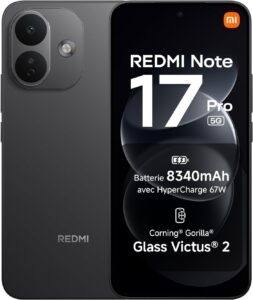 Xiaomi Redmi Note 17 Pro 5G 8/512 GoBatterie 8 340 mAh, charge 67 W, écran AMOLED 6,83 pouces, Snapdragon 6s Gen 4.AmazonSee at Amazon
Take better care of your Xiaomi: our toolbox
These accessories help you charge without excess heat and keep your phone in good shape.
- Anker Nano 20 W USB-C wall charger (PowerPort III)Compact fast charger for phones with a USB-C port. It fits easily in a bag or a travel pouch.AmazonSee at Amazon
- Anker 310 USB-C to USB-C cable, 0.9 mShort USB-C to USB-C cable from a recognised brand, handy to replace a worn cable. Also useful to test whether the cable is the cause of a charging problem.AmazonSee at Amazon
 UGREEN Nexode 65 W wall charger (3 ports)Compact charger with three ports to charge a tablet, a phone and another device at once. Its 65 W output leaves headroom for fast charging.AmazonSee at Amazon
- Anker PowerWave Pad 10 W Qi wireless chargerA flat Qi pad: set the phone on it and it charges without a cable. It spares the charging port from daily plugging.AmazonSee at Amazon
Frequently asked questions
Why is my Xiaomi 14 so hot?
A Xiaomi 14 runs hot mostly when it is new or just after a data transfer, according to Xiaomi. It is then installing and compiling apps, syncing the cloud and downloading updates, with the processor at full load.
The temperature returns to normal once that phase ends. Heat that persists or concentrates near the battery is worth a trip to Xiaomi service, as a precaution.
How do I update HyperOS on the Xiaomi 14?
Go to Settings > About phone > Xiaomi HyperOS > Check for updates, then download and install the version offered. Upcoming versions are tracked in our article on the HyperOS 4 release date and the devices concerned.
Why does my Xiaomi 14 battery drain so fast?
Background apps, high brightness, a 120 Hz screen, the always-on display and haptic feedback are among the causes Xiaomi lists. Set the screen to 60 Hz, turn off the always-on display and turn on Battery saver. According to unofficial sources, drain can also stay high for 24 to 48 hours after a big update.
Is the Xiaomi 14 still getting updates?
We found no official end-of-support date for the Xiaomi 14 and 14 Pro. Xiaomi indicates a cycle of roughly two to three years for its smartphones.
According to unofficial sources, the Xiaomi 14 shipped with HyperOS 1.0 (Android 14), and a third-party tracker lists a European HyperOS 3 firmware, which is not officially verified. See what is offered to you under Settings > About phone > Xiaomi HyperOS > Check for updates.
Share this content: