

Updated on November 2, 2026
This article contains affiliate links: if you buy through them, Wanda-techs earns a commission at no extra cost to you.
If your computer won’t turn on and no light responds, start with the wall outlet, the charger, the power supply or the battery. A light that comes on with no picture points more toward the screen, the memory or a connected device.
Common symptoms and causes
- No light, no sign of life: the outlet, the charger, the power supply (the box that feeds a desktop PC) or the battery is at fault.
- A light is on or a fan spins, but there is no picture: check the screen, the memory (RAM) and any connected devices.
- Beeps or a blinking light: the computer is reporting a hardware fault with a code, listed in its manual.
- A freeze with no visible cause: leftover electrical charge or a BIOS state (the basic software that starts the computer) can block startup.
Does the computer power on, but the system won’t load? That case has its own guide: PC won’t start.
Before you start
- Work out which machine you have: a laptop or a desktop PC.
- On a laptop, check whether the battery is removable.
- Note the exact brand and model: the fault codes depend on it.
Warning: unplug the device from the mains before opening it. Never work on a plugged-in device. The capacitors in some devices (TVs, microwaves, power supplies) stay charged after unplugging: do not touch them.
Warning: replacing a power supply is a job for qualified people. If you open a desktop PC, protect the components from static electricity.
Warning: never puncture, bend or heat a lithium battery. A swollen battery no longer charges and goes to a collection point: never use it. Work on a non-flammable surface.
Warning: opening the device can void the warranty, and so can working on a motherboard jumper. Check your warranty end date first.
Warning: solution 5 erases data, namely the BIOS settings. Back up first if the computer still allows it, by noting those settings. According to an unconfirmed excerpt of the HP page, the hard reset in solution 2 does not erase your data.
Solution 1: check the outlet, the charger and the cable
Desktop PC that won’t turn on
- Push the power cable in firmly, at both the computer end and the outlet end.
- Remove the power strip or surge protector, then plug the computer straight into the wall outlet.
- Test the outlet.
- Try a power cable you know works.
- Press the power supply’s test button, if it has one.
The power supply’s light should come on. If it stays off, the power supply may be faulty.
Tip: some PC cases have a switch at the back. Check that it is in the on position.
Laptop that won’t turn on even when plugged in
- Plug the laptop into its charger alone.
- Check whether the charger’s light is on.
- If that light stays off, try a charger you know works: on a Dell, only a Dell or approved charger.
The laptop should then start with the power button. If it starts but the battery stays flat, go to the guide on a laptop that won’t charge.

Good to know: on a laptop that charges over USB-C, only some ports deliver power. Check that the charger is plugged into the right one.
If your laptop charges over USB-C and the charger is the culprit, here is a 65 W charger compatible with many models.
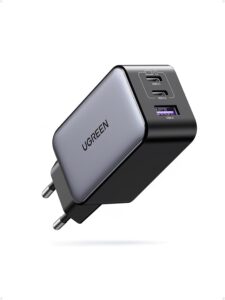
UGREEN Nexode 65 W charger (3 ports)
Charges a phone, a tablet and a laptop at the same time from one outlet. A single adapter replaces several chargers.
- AmazonSee at Amazon
- CdiscountSee at Cdiscount
- AliExpressSee at AliExpress
Solution 2: do a hard reset
A hard reset drains the computer’s leftover charge. HP gives it as the first step to follow. The procedure below is Dell’s for its laptops.
- Fully charge the laptop.
- Remove the battery if it is removable.
- Unplug the charger.
- Hold the power button down for 15 to 20 seconds.
- Put the battery back in.
- Turn the computer on again.
The computer should start. If not, move on to the next solution.
For HP, the information that follows is unconfirmed: it comes from an excerpt of the help page that we could not read in full. Unplug the charger and any non-essential devices, hold the button for about 15 seconds (about 20 seconds on a desktop PC), plug back in, then turn on. The HP page read in full gives no duration.
For Lenovo, we could not read any official page. Unofficial sources mention an emergency hole, the Novo button and a 30-second press. Nothing is confirmed: check your model’s manual first.
Solution 3: unplug the devices and test the screen
Try this when a light comes on with no picture, or when the screen stays black with no fault code.
- Unplug all connected devices.
- Turn the computer on again.
- Plug the devices back in one by one.
- On a Dell laptop, press the power button, then the
Caps Lockkey. - See whether the laptop reacts.
- If it does, see whether the screen shows a picture.
The computer should show a picture. If the laptop does not react, go back to solutions 1 and 2.
A black screen that appeared after an update on a Dell is a different case: see our article on KB5101650 and the black screen on Dell PCs.
Solution 4: read the beeps and the blinking light, run the diagnostic
The procedures below are Dell’s. On another brand, your model’s manual explains what the codes mean.
- Note the beeps or the light blinks.
- Look up that fault code in the manual.
- On a Dell laptop that is off, hold
Mand the power button to run the M-BIST test, a built-in motherboard test. - Watch the result for about 30 seconds.
- On that laptop, then run ePSA, Dell’s built-in diagnostic, by holding
Fnand the power button. - On a Dell desktop PC, press
F12at the Dell logo (or0if there is noF12key), then choose Diagnostics.
Expected M-BIST result: the battery light stays off and the screen cycles through colors for about 30 seconds, which means no fault was found. If that light turns amber or white, or blinks a code for 30 seconds, the motherboard has failed. Contact Dell.

Tip: film the light with your phone. A blink pattern is easier to count on video.
Solution 5: reset the RTC on a Dell desktop PC
This advanced solution applies to Dell desktop PCs. It resets the RTC, also called the CMOS, the memory that keeps the BIOS settings.
Warning: step 3 erases the BIOS settings. Opening the case or handling a jumper (a small removable connector on the motherboard) can affect the warranty. If in doubt, move on to the next section.
- Unplug the computer.
- Open the case.
- Move the jumper from
PSWDtoRTCRSTfor about 5 seconds. - Put the jumper back on
PSWD.
Close the case, plug the computer back in and turn it on. It should start with the BIOS settings reset.
To open a desktop PC’s case without damaging the screws, a precision screwdriver set is handy.

iFixit Moray precision screwdriver set (32 bits)
This case holds 32 precision bits, including Phillips and Torx, to open the battery cover and other small devices. The hardened steel helps avoid damaging the screws.
- AmazonSee at Amazon
If nothing works
Still no light after changing the charger, doing the hard reset and unplugging the devices? Stop there. An unresolved hardware fault is a job for the manufacturer’s support or a repair shop.
- Dell: see its guide to power problems. Dell offers a mail-in repair in some countries.
- HP: see its help page on power and boot problems. HP may ask for a valid warranty or an account.
Have the serial number, the model, the purchase date and what you observed ready: lights, beeps, solutions already tried. To recover your files, ask a professional to extract the data from the drive.
Take better care of your computer: our toolbox
These accessories help you test the power supply, protect the machine from power surges and back up your files.
- UGREEN Nexode 65 W charger (3 ports)Charges a phone, a tablet and a laptop at the same time from one outlet. A single adapter replaces several chargers.AmazonSee at Amazon
- Belkin surge protector, 4 outlets, 525 joules, 2 m, 2 USB portsProtects the TV and its box from voltage spikes. Its switch cuts power to all devices at once.AmazonSee at Amazon
- AstroAI digital multimeter, 2000 countsMeasures voltage, current and continuity. Useful to check whether a fuse or a battery is in good condition.AmazonSee at Amazon
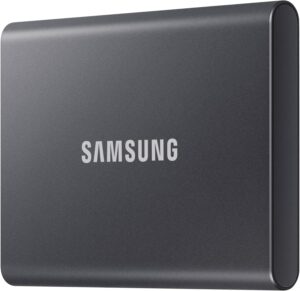 Samsung T7 1 TB external SSDFast, rugged pocket SSD to keep an offline copy of your site files and database at home. Unplugged, it is out of an attacker's reach.AmazonSee at Amazon
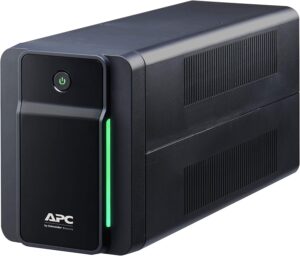 APC Back-UPS 750VA BX750MI, UPSProtects the router, NAS or small office server against outages and surges, long enough for a backup or a clean shutdown.AmazonSee at Amazon
Frequently asked questions
Why won’t my laptop turn on even when plugged in?
The charger, the battery or leftover charge can be the cause. Check the charger’s light, try another one you are sure of, then do a hard reset.
My laptop won’t turn on and a light is blinking: what should I do?
Look up that blink pattern in your model’s manual: it is a fault code. Film it first, so you can recount it calmly.
How do I hard reset a laptop?
Unplug the charger, remove the battery if it is removable, then hold the power button for 15 to 20 seconds, following Dell’s procedure. Put the battery back and turn it on. According to an unconfirmed excerpt of the HP page, this does not erase your data.
What if the light comes on but the screen doesn’t?
Unplug all devices, then plug them back in one by one. The screen, the memory or a connected device may be at fault. On a Dell laptop that reacts to the Caps Lock key, see whether the screen shows a picture.
How do I recover my data if the computer won’t start?
Hand the drive to a professional data recovery service. Do so if the hard reset, the charger swap and unplugging the devices have changed nothing.
Share this content: