
Steam not connecting? About half the time the cause is out of your hands: Valve’s servers are under maintenance or struggling, and no setting will change that. So the first thing to do is not to reinstall anything, but to open a status site such as steamstat.us on your phone. If everything there is green, the block is on your side, and it is usually cleared by restarting Steam and your router, then clearing the download cache.
At a glance: the quick fix
- Open steamstat.us on another device. Red or orange lines: it is Steam, so wait.
- Test store.steampowered.com in a browser, then over your phone’s mobile hotspot. If Steam works on mobile data and not on your home connection, the problem is your network.
- Quit Steam completely (Steam menu > Exit, not the X button), restart the router, launch it again.
- For a frozen download: Steam > Settings > Downloads, clear the cache and then change the download region.
- Do not uninstall Steam during an outage. You gain nothing and risk losing your installed games.
Steam not connecting: recognizing the problem
The client sits on the sign-in screen and spins forever. The friends list shows “Offline” while your browser works fine. The store loads a black page or an error message. A download drops to 0 bytes per second and stays there. In an online game, matchmaking searches endlessly. The messages on screen give a first clue.
| Message or code | Where it appears | What it most often means |
|---|---|---|
| “Could not connect to the Steam network” | When the client starts | Steam is unreachable: an outage on Valve’s side, or traffic blocked between your PC and Steam |
| “No connection” | Banner in the client, friends list | The client has lost its session; common during maintenance |
| Code e502 L3, “Something went wrong” | Store, cart, sign-in | Steam’s web servers are not responding properly; overload or maintenance |
| Code e84, “Something went wrong while attempting to sign you in” | Sign-in screen | Authentication failed: PC clock out of sync, unstable network, sometimes the password |
| “An error occurred while updating [game] (content file locked)” | Downloads | Steam cannot write to the disk: antivirus, game still running, permissions, damaged folder |
The exact wording varies with the client version. Go by the code or the term in parentheses.
Why it happens
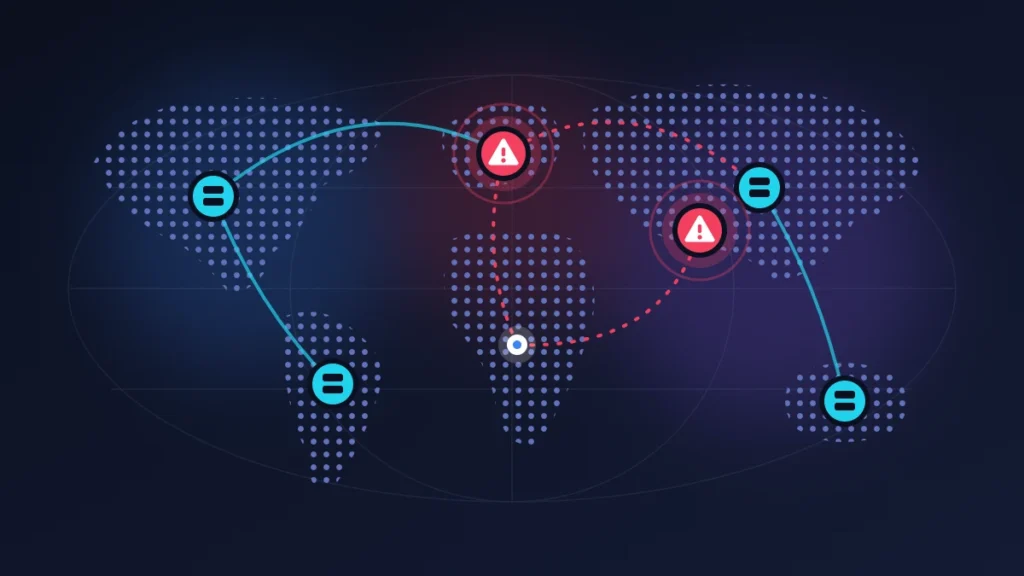
Steam is not a single service. Behind the client sit several independent building blocks: the store, the community, the content servers that distribute games, and the connection managers, the machines your client hooks into to authenticate you and keep your session alive. One faulty block is enough to cause a partial outage: you can be signed in and unable to download anything.
Valve also carries out routine maintenance every Tuesday, in the late afternoon Pacific time. That is Tuesday evening on the US East Coast, and late Tuesday night or the early hours of Wednesday in the UK, continental Europe and West and Central Africa. It is not announced in the client and its start time drifts a little. The interruption usually lasts from a few minutes to half an hour. During that window, connections are shifted from one server to another, which causes routing instability: repeated disconnections, interrupted matches, paused downloads. Everything generally settles down in under two hours, with no action needed.
The other half of the cases plays out at home. A corrupted download cache, an overzealous antivirus, a forgotten VPN, a failing DNS, a router that filters certain ports: any of these can cut Steam off while leaving the rest of the Internet working.
Before you start
Never delete the steamapps folder: it holds your installed games. The userdata folder holds screenshots and local saves. The rest of the Steam folder can be rebuilt, but not those two.
Have your password and your phone with Steam Guard at hand: several of these steps sign you out.
Do not retry a purchase over and over if the store shows an error: the payment may have gone through. Check your purchase history once the service is back.
Fix 1: the one-minute diagnosis
Always do this first. No risk.
1. Check a status site
steamstat.us, a SteamDB project, shows the status of the store, the community, the web API and the connection managers by region, as well as the matchmaking coordinators for Valve’s games. The site is neither official nor affiliated with Valve, but it polls the servers continuously.
2. Do the browser test
Open store.steampowered.com in a browser. If you can sign in there, the web servers are fine and the trouble lies with the client.
3. Switch networks
Turn on your phone’s hotspot and run Steam over it for a few moments. The client connects on mobile data but not on your home connection: it is your home network or your Internet provider. It fails everywhere: it is Steam, or your PC.
If all three tests point to Steam, move on to fix 2. Otherwise, skip to fix 3.
Fix 2: if the outage is Steam’s, wait it out wisely
Nothing you do on your PC will bring the service back any faster.
1. Do not reinstall, do not clear anything
Clearing the cache or running flushconfig in the middle of an outage signs you out, with no way to sign back in while the authentication servers are down. Uninstalling through Windows can also take your games with it.
2. Go offline, if you prepared for it
Offline mode lets you launch single-player games without the servers. Steam menu > Go Offline. It only works if the client has remembered your session and if the games are up to date and have already been launched once while online. The preparation is detailed further down.
3. Do not cancel a download in progress
An interrupted update picks up where it left off.
Check: the status site turns green again, then the client reconnects by itself. If it is still frozen twenty minutes after the service returns, quit it completely and launch it again.
Fix 3: restart Steam and the router properly
Use this as soon as the diagnosis points to your setup. No risk.
1. Really quit Steam
Closing the window is not enough, the client keeps running in the background. Go through Steam > Exit. If it is frozen, open Task Manager (Ctrl + Shift + Esc) and end the Steam processes.
2. Restart the modem and router
Unplug them, wait a good minute, plug them back in, then let the lights settle before restarting the PC.
3. Check the PC’s clock
A clock that is out of sync makes encrypted connections fail, and it is a recognized cause of code e84. In Windows Settings, under Time & language, turn on automatic time setting and run a sync.
Check: your username appears in the top right and the friends list fills up.
Fix 4: unblock a download or an update
Use this when you are signed in but nothing comes down. Low risk: the current download may start from scratch and you will have to sign in again.
1. Clear the download cache
Steam > Settings > Downloads > Clear Cache. Steam restarts and asks for your credentials again. Your installed games are not touched.
2. Change the download region
In the same place, the Download Region menu sets which content server is used. Pick a nearby city or country, wait five minutes, try again. While you are there, make sure no download speed limit is ticked on that page.
3. Verify the integrity of the game files
Library > right-click the game > Properties > Installed Files > Verify integrity of game files. Steam compares your files with those on the server and only downloads what is missing.
4. Deal with “content file locked”
This message signals a problem writing to the disk. Check in Task Manager that no process from the game is still hanging around, anti-cheat included, then restart the PC. Look at the antivirus quarantine and add the Steam folder to its exclusions. If the error persists, open Steam > Settings > Storage, select the drive, click the three dots and then Repair Folder. As a last resort, move the game to another drive: Properties > Installed Files > Move install folder.
Check: the progress bar moves again.
Fix 5: reset Steam’s configuration
Use this when the client refuses to connect even though the site works in the browser. Moderate risk: you are signed out, and if your games are spread across several drives, you may have to add the library folders again under Settings > Storage.
1. Run flushconfig
Quit Steam. Press Windows + R, type the following command and confirm:
steam://flushconfigAccept the dialog box, restart the PC, then launch Steam from its installation folder and sign in again.
2. Repair the Steam service
Open Command Prompt as administrator and run, quotation marks included:
"C:\Program Files (x86)\Steam\bin\SteamService.exe" /repairAdjust the path if Steam is installed elsewhere. The operation can take several minutes.
3. Force the TCP protocol
Some corporate, dorm or hotel networks filter UDP traffic. Right-click the Steam shortcut > Properties, and in the Target field add a space followed by -tcp after the closing quotation mark.
Check: the client gets past the sign-in screen without an error message.
Fix 6: clean up the Windows network stack
Use this when Steam works over a hotspot but not at home, or when other services are misbehaving too. Low risk: a network drop of a few seconds and a mandatory restart.
1. Flush the DNS and reset Winsock
In an administrator Command Prompt, one line at a time:
ipconfig /release
ipconfig /renew
ipconfig /flushdns
netsh winsock reset
Then restart. Winsock is the Windows layer through which programs access the network.
2. Change DNS resolver
DNS translates domain names into addresses. When your provider’s DNS goes off the rails, Steam can no longer find its servers. Replace it in the network adapter’s properties, or directly in the router, with a public resolver: 8.8.8.8 and 8.8.4.4 from Google, 208.67.222.222 and 208.67.220.220 from OpenDNS. Run ipconfig /flushdns again after the change.
3. Turn off VPNs, proxies and optimization tools
Disable the VPN. In Control Panel > Internet Options > Connections > LAN settings, untick any proxy server. Close software that promises to speed up games or manage bandwidth: these are among the usual suspects.
4. Allow Steam through the firewall
In Windows Security > Firewall & network protection > Allow an app through firewall, make sure steam.exe and steamwebhelper.exe are ticked.
5. Check the ports and the router
Steam uses TCP ports 80 and 443 for the web, a TCP and UDP range starting at 27015 for sign-in and downloads, and UDP ports between 27000 and 27100 for game traffic. A consumer router lets them out by default. The block is more likely to come from parental controls or a quality-of-service feature enabled on the router: turn them off for the duration of the test. The full list is on the “Required Ports for Steam” page of Valve’s support site.
6. Update the network driver
Get it from the website of your motherboard or laptop manufacturer.
Check: Steam connects on your home network just as it did over the hotspot.
Fix 7: the Steam Deck case
Steam button > Settings > Internet lets you reconnect to Wi-Fi and turn on offline mode. If the handheld stays stuck at sign-in while Steam works on your PC, try a phone hotspot to rule out the router.
One setting often helps: enable developer mode under Settings > System, then in the Developer menu turn off Wi-Fi power management and restart. For a frozen download, the cache is cleared from the Steam client in Desktop Mode, through Steam > Settings > Downloads.
Fix 8: an online game that cannot find a match
A multiplayer game depends on two infrastructures. The publisher’s servers host accounts and progression. Steam often provides sign-in, lobbies and the network relay between players. The result: during Steam maintenance, a title such as Warframe can refuse to connect or leave matchmaking spinning while the servers of its publisher, Digital Extremes, are running normally.
The reverse also happens. If steamstat.us is entirely green and only one game is acting up, look to the publisher: official social media account, forum, status page. Tinkering with Steam is pointless in that case.
Summary table
| Symptom | Likely cause | Fix to try |
|---|---|---|
| Sudden disconnection on a Tuesday evening | Weekly maintenance | Fix 2: wait |
| e502 L3 in the store | Steam web servers overloaded or under maintenance | Fixes 1 and 2 |
| e84 at sign-in | Clock out of sync, unstable network | Fix 3, then 5 |
| The site works, the client does not | Client configuration, firewall | Fixes 5 and 6 |
| Steam works on mobile data, not on the home connection | DNS, router, Internet provider | Fix 6 |
| Download at 0 bytes/s | Content server overloaded, corrupted cache | Fix 4 |
| Content file locked | Antivirus, game still running | Fix 4, step 4 |
| A single game cannot find a match | Publisher’s servers, or Steam relay | Fix 8 |
If nothing works
What remains is reinstalling the client, done without losing your games. Quit Steam, open its installation folder and delete everything except steam.exe, the steamapps folder and the userdata folder. Run steam.exe again: the client downloads itself afresh and finds your games. Do not go through the Windows uninstaller.
If the failure persists on your home connection but never over a hotspot, call your Internet provider. Tell them that websites open, that Steam works on another network, and ask for a routing check.
For Steam Support, go through help.steampowered.com. Give the exact error code, your download region, your provider and what you have already tried, with a screenshot to back it up.
Keeping it from happening again
Set up offline mode while everything is working. Sign in with the option to remember your account ticked, let every update finish, launch each single-player game you will want to have available once, then do a trial run with Steam > Go Offline. Always quit Steam cleanly: a forced shutdown can invalidate the offline mode data.
Schedule your big downloads outside the Tuesday window and add the Steam folder to your antivirus exclusions.
Frequently asked questions
How long does Steam maintenance last?
Tuesday maintenance generally lasts from a few minutes to half an hour. Leftover disruption normally clears up in under two hours.
Does clearing the download cache delete my games?
No. Only temporary download files are erased. You will, however, have to sign in again, and a download in progress may start over.
What exactly does steam://flushconfig do?
It rebuilds the client’s configuration. Games stay in place, but you are signed out and libraries located on other drives sometimes have to be added again.
How do you know whether Steam is down?
Check steamstat.us from another device. If the connection managers or the store are flagged as faulty there, the outage is on Valve’s side.
If you are still stuck with Steam not connecting at home after these checks, describe in the comments the message displayed, your Internet provider and what the hotspot test gives: those three pieces of information are often enough to identify the culprit.
Share this content: