Pixel: Battery Draining Even in Standby Since Android 16? Here’s What to Do
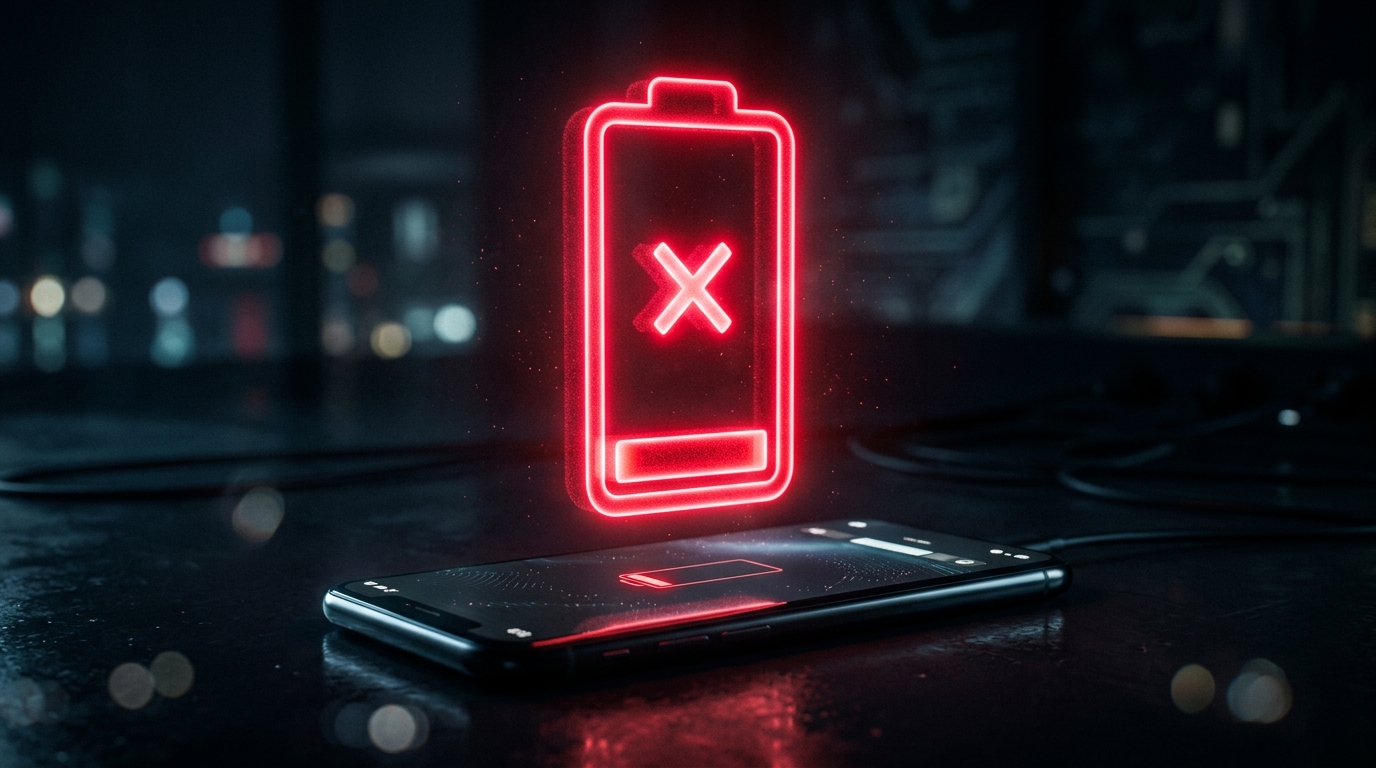
Since the spring 2026 Android 16 updates, many Google Pixel owners (from the Pixel 6 to the Pixel 10) have reported abnormal battery drain, even with the phone at rest on a desk. Some report losing 20-30% per hour in standby, sometimes even in airplane mode. The cause: devices that can no longer enter deep sleep states, leaving background processes running. Google has acknowledged it is investigating, but while we wait for a full fix, here’s how to take back control.
Understanding the Problem
Normally, a phone at rest drops into deep sleep: most components go to sleep and power draw becomes minimal. The Android 16 bug prevents some Pixels from reaching that state: the processor and services stay partially active, which drains the battery and sometimes makes the device heat up even without use. The fact that the drain persists in airplane mode points to a system-level power issue, not just one greedy app — though a poorly optimized app can make it worse.

Step 1: Identify What’s Consuming Power
- Go to Settings → Battery → Battery usage. Spot any app consuming abnormally in the background.
- Compare screen-on time with « standby » time: if the battery drops while the screen stayed off, it’s indeed a deep-sleep problem.
Step 2: Fixes to Apply in Order
- Restart the phone: a simple restart often revives the sleep mechanisms and fixes a sudden drain.
- Force-stop suspect apps: in Settings → Apps, open the flagged app, then Force stop. Limit its background activity via Battery → Restricted.
- Check Adaptive Battery: Settings → Battery → Adaptive Battery. Turn it off and back on to reset its learning, which may have gone off track after the update.
- Test in Safe Mode: hold the power button, then long-press « Power off » to restart in Safe Mode (only system apps run). If the battery holds up normally, a third-party app is to blame: uninstall recently installed or updated apps one by one.
- Clear the cache of problematic services and make sure all your apps are up to date via the Play Store.
- Check for system updates: Settings → System → System update. Install the latest patch, as it may contain the fix for the sleep bug.
Step 3: If Nothing Works
- Temporarily turn off power-hungry features: Always-on Display, overly frequent syncing, continuous location, widgets that refresh in the background.
- As a last resort, back up your data and perform a factory reset: it clears corrupted settings inherited from the update, often responsible for persistent drain.
- If the problem is clearly tied to the update and no fix arrives, watch Google’s announcements: the company has confirmed it is working on it, with no firm timeline so far.
The Add-On That Saves the Day
Until the system fix rolls out, a good-capacity power bank remains the simplest way to avoid running flat on the go, especially in the first days after an update, when consumption is at its most unpredictable.
The Anker PowerCore 20,000 mAh power bank recharges a smartphone three to four times and fits in a pocket.
Check the Anker PowerCore 20000 power bank price on Amazon
As an Amazon Associate, Wanda-techs earns from qualifying purchases. This affects neither our independent analysis nor the price you pay.
What It Means for You
This kind of bug is a reminder that an Android update can, despite its improvements, temporarily hurt battery life on some models. The good news: in most cases, standby drain is fixed with a restart, hunting down the guilty apps, and installing the latest patch. Keep an eye on monthly security updates, and avoid installing a major update on day one if your Pixel is your main phone.

Is your Pixel affected by this standby drain? Tell us in the comments and follow Wanda-techs for all our Android tips.
\n\n\n\nShare this content:








Post Comment